
Best Free Fire Sensitivity Settings for Headshots 2026
Consistent headshots in Free Fire depend on more than just reaction speed. Sensitivity settings play a major role in how accurately you can track opponents and place your crosshair at head level.
Many players copy random values from videos and then feel frustrated when the results do not match. This guide explains how sensitivity works, provides practical starting points for different devices, and shows a reliable way to fine tune your settings for better headshots.
Why Sensitivity Matters for Headshots
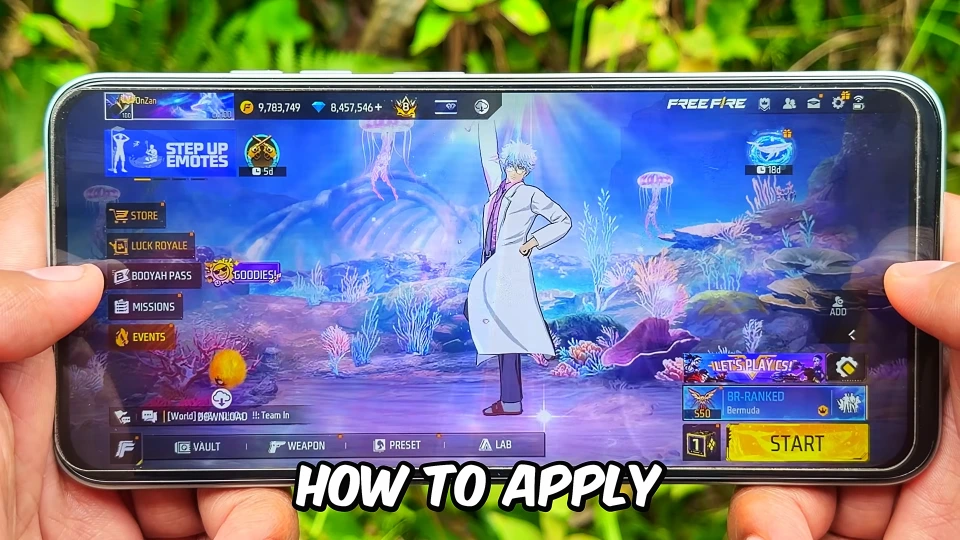
Sensitivity controls how fast the camera and crosshair move when you slide your finger on the screen. If the value is too high, small finger movements cause large camera swings and make precise head level tracking difficult.
If the value is too low, you struggle to turn quickly or follow fast moving targets. The right balance allows smooth tracking while still giving enough speed for close range fights. Good sensitivity does not create headshots by itself, but it removes unnecessary difficulty from aiming.
Understanding Each Sensitivity Option
Free Fire provides several sensitivity categories. General sensitivity affects overall camera movement when not scoping. Red Dot controls the feel when using red dot or holographic sights.
2x and 4x scopes have their own values because higher zoom levels need slower movement for precision. AWM or sniper sensitivity further reduces speed for long range shots.
Free Look determines how fast you can check your surroundings without moving the crosshair. Understanding these separate controls helps you adjust only the parts that feel wrong instead of changing everything at once.
Recommended Settings for Low End Phones
On phones with limited processing power, slightly lower sensitivity often feels more stable. A good starting range is General 75 to 85, Red Dot 70 to 80, 2x around 65 to 75, 4x around 55 to 65, and sniper sensitivity between 45 and 55. Free Look can stay near 75 to 85.
These values reduce the chance of over aiming when frame rates are not perfectly consistent. Adjust upward only after testing feels comfortable.
Recommended Settings for Mid Range Phones
Mid range devices can usually handle slightly higher values while remaining controllable. Try General 85 to 95, Red Dot 80 to 90, 2x 70 to 80, 4x 60 to 70, and sniper 50 to 60. Free Look can sit between 80 and 90.
These numbers give enough speed for close fights while still allowing precise head level tracking at medium distance. Most players in this category find their final values within a small range of these starting points.
Recommended Settings for High End Phones
High end phones with stable high frame rates support faster sensitivity more easily. General 90 to 100, Red Dot 85 to 95, 2x 75 to 85, 4x 65 to 75, and sniper 55 to 65 work as solid starting ranges.
Free Look can go up to 90 or higher if you like quick camera checks. Even on strong devices, extreme values above these ranges often reduce accuracy rather than improve it.
Sensitivity by Finger Style
Your finger setup also affects the best sensitivity.
Sensitivity Recommendations by Finger Style
Your finger style affects how quickly and accurately you can move the crosshair. The following comparison provides general guidance for choosing sensitivity based on your control setup.
| Finger Style | General Sensitivity Approach | Main Focus |
|---|
| 2-Finger (Thumbs) | Start with moderate sensitivity and adjust gradually | Comfortable aiming and controlled drag movements |
| 3-Finger Claw | Test slightly higher General and Red Dot sensitivity | Faster firing and smoother crosshair movement |
| 4-Finger Claw | Experiment with higher values if finger control feels comfortable | Precise movement and simultaneous actions |
These are general suggestions rather than fixed sensitivity values. Your device, HUD layout, and individual finger control matter more than the number of fingers alone.
How to Test Sensitivity Correctly
Never take new sensitivity straight into ranked matches. Open training mode and spend at least ten to fifteen minutes testing.
Practice tracking moving bots at head level, close range flicks, and mid range controlled sprays. Pay attention to whether you overshoot or undershoot the head. Make only one small change at a time, then test again. This method reveals the true feel of each adjustment and prevents confusion.
Adjustments for Red Dot and Scopes
Red Dot sensitivity strongly influences close and mid range headshot consistency. If you frequently overshoot targets with red dot, lower the value slightly. For 2x and 4x scopes, slower sensitivity usually improves long range precision.
Many players keep 4x noticeably lower than Red Dot so they can control recoil and track accurately at distance. Sniper sensitivity should feel steady enough for small adjustments without becoming sluggish.
Common Sensitivity Mistakes
One frequent mistake is copying a professional player’s exact settings without considering device and finger style differences.
How to Fix Common Sensitivity Problems
Small adjustments are usually easier to evaluate than changing all settings at once. Use these suggestions to identify and correct common aiming problems.
| Problem | Possible Adjustment |
|---|
| Crosshair moves above the head | Reduce General or Red Dot sensitivity slightly |
| Aim feels too slow during close fights | Increase General sensitivity gradually |
| Red Dot aiming feels unstable | Lower Red Dot sensitivity by a few points |
| Long-range aim moves too quickly | Reduce 4x or sniper sensitivity |
| Aim changes after adjusting HUD | Recheck sensitivity with your updated button positions |
Make one adjustment at a time and practice for several sessions before deciding whether to keep it. Consistency and comfortable control are more useful than constantly chasing new sensitivity values.
How to Fine Tune for Better Headshots
After finding a comfortable base range, make very small adjustments of two to five points. Focus on the specific situation that feels wrong. If close range tracking is too fast, lower Red Dot slightly.
If turning feels slow when someone flanks, raise General a little. Practice the same scenarios repeatedly after each change. Over several sessions the settings begin to feel natural and head level aiming becomes more consistent.
Combining Sensitivity With HUD
Sensitivity works together with your control layout. If fire and scope buttons are poorly placed, even good sensitivity feels awkward.
Make sure your HUD allows comfortable thumb or finger movement without accidental presses. Once the layout feels natural, sensitivity adjustments become more effective. Review both elements together rather than treating them as completely separate.
Final Sensitivity Tips
Start with the recommended range for your device type, then adjust slowly based on training mode results. Keep changes small and test thoroughly. Match sensitivity to your finger style and current HUD layout.
Consistency matters more than perfect numbers. With patient testing and realistic expectations, most players can develop sensitivity settings that support more reliable headshots and overall better aim in Free Fire.