
How to Fix Free Fire Lag on Android With Performance Tools
Lag is one of the most common problems Free Fire players face on Android devices. Sudden frame drops, delayed touch response, and freezing during fights can ruin the experience even when your aim and game sense are good.
Many players look for practical ways to reduce lag using performance tools along with proper device and in game settings. This guide explains the main causes of lag and the steps that actually help improve smoothness on most phones.
Main Causes of Lag in Free Fire
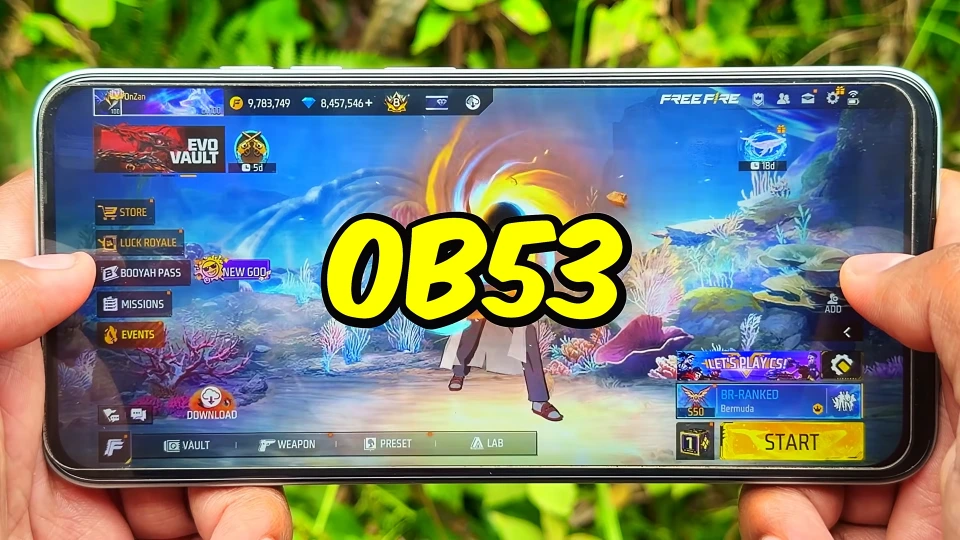
Lag does not always come from one single source. Limited RAM, background apps running at the same time, high graphics settings, device heating, and unstable network can all contribute.
On lower end phones the combination of these factors becomes more noticeable during close fights or when many players are on the screen. Understanding the cause makes it easier to apply the right solution instead of changing random settings.
How Performance Tools Help Reduce Lag
Performance tools work by helping the device manage resources more efficiently while Free Fire is running. They reduce unnecessary background activity so more memory and processing power stay available for the game.
When used correctly, these tools can improve frame consistency and make touch response feel more immediate. They work best when combined with sensible in game settings and basic device care rather than used alone.
Best In Game Graphics Settings
One of the fastest ways to reduce lag is adjusting Free Fire graphics settings.
Recommended Graphics Settings by RAM
Your phone’s available RAM can affect how smoothly Free Fire runs, especially when other apps are open. Use these general settings as a starting point and adjust them according to your device’s actual performance.
Device RAM | Graphics Setting | Performance Recommendation |
2 GB RAM | Smooth | Close background apps and prioritize stable gameplay |
3–4 GB RAM | Smooth or moderate graphics | Test available frame rate options and monitor heating |
6 GB RAM | Smooth or higher graphics, if stable | Increase visual quality gradually while checking frame consistency |
8 GB RAM or more | Test higher graphics options supported by the device | Choose settings that maintain consistent performance during fights |
RAM alone does not determine gaming performance. Your processor, GPU, operating system, available storage, and device temperature also affect results. Always prioritize stable gameplay over maximum graphics quality.
How to Clear Background Apps Properly
Background apps quietly consume RAM and processing power even when you are not using them. Before launching Free Fire, close social media apps, browsers, and other heavy programs. On most Android phones you can do this from the recent apps screen.
Some devices also offer a game mode or performance mode that limits background activity automatically. Clearing these apps gives the performance tool more room to work effectively.
Device Settings That Improve Performance
Several system settings can support smoother gameplay. Keep at least 20 percent of storage free because low storage often slows overall performance. Avoid playing while the phone is charging if it causes extra heating.
Enable any built in game or performance mode your phone provides. Keeping the system software updated can also improve how the device manages resources. These small adjustments work together with performance tools for better results.
Sensitivity Adjustments for Smoother Feel
Lag is not only about frame rate. Delayed or inconsistent touch response also affects how the game feels. After reducing lag sources, check your sensitivity settings. Balanced values usually work better than extreme ones.
General sensitivity between 85 and 95 suits many mid range phones. Red Dot and scope sensitivities can be fine tuned according to your preference. Smooth frame rates combined with comfortable sensitivity make aiming and movement feel more responsive.
Extra Tips for Low End Phones
Phones with limited RAM benefit most from careful preparation. Keep graphics settings lower, close every unnecessary app, and avoid long continuous sessions that cause heating. Restart the phone occasionally to clear temporary processes.
Make sure the performance tool version matches your current Free Fire update. On very low end devices, stable 30 frames often feels better than unstable higher frame attempts.
How to Combine Tool With Phone Settings
The best results usually come from combining several approaches. First clear background apps and adjust Free Fire graphics. Then apply moderate settings in the performance tool. Finally, test sensitivity and control layout in training mode.
Using the tool as one part of a complete setup works better than expecting it to solve every lag source by itself. Consistency across device, game, and tool settings produces more reliable improvement.
Common Mistakes That Increase Lag
Some players increase graphics settings while hoping a performance tool will compensate. This often creates more frame drops. Others run multiple optimization apps at the same time, which can cause conflict.
Playing with almost full storage or during heavy overheating also limits improvement. Ignoring version compatibility after Free Fire updates is another frequent mistake. Avoiding these habits makes the lag reduction process more effective.
How to Test If Lag Is Fixed
After making changes, test properly before ranked matches.
Free Fire Performance Testing Checklist
Use this checklist to compare gameplay before and after changing your settings. Test under similar conditions so you can identify whether the adjustments make a noticeable difference.
Test Area | What to Check |
Frame Consistency | Does gameplay remain smooth during movement and combat? |
Touch Response | Do aiming and shooting actions respond consistently? |
Close-Range Fights | Are there fewer noticeable freezes during fast encounters? |
Device Temperature | Does the phone become excessively hot during play? |
Network Stability | Are ping and connection quality consistent? |
Long Sessions | Does performance remain stable after several minutes of gameplay? |
If performance does not improve, restore the previous settings and check whether the issue is related to network connectivity, device limitations, or overheating.
Long Term Maintenance Tips
Lag control is not a one time task. After major Free Fire updates, check whether your performance tool version still works correctly. Clear storage regularly and avoid letting background apps pile up.
Restart the phone from time to time. Keep settings moderate rather than constantly pushing maximum values. These habits help maintain smoother performance over longer periods instead of only temporary improvement.
Final Lag Fix Checklist
Close background apps before playing. Use balanced Free Fire graphics settings. Keep enough free storage. Apply moderate options in the performance tool. Test sensitivity and controls in training mode.
Avoid overheating and version mismatch. Follow these points consistently and most Android players can reduce lag noticeably and enjoy more stable Free Fire matches on their devices.